
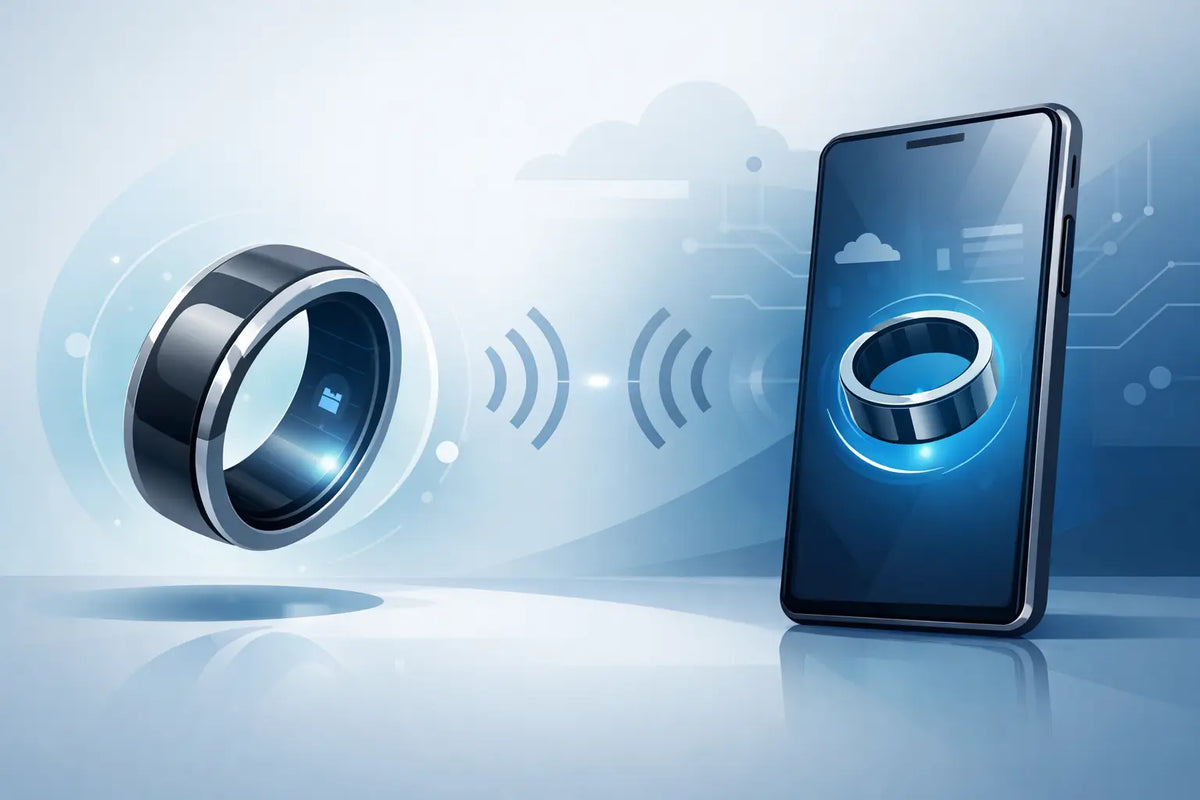
The ring fits perfectly, your smartphone is ready - now the smart ring smartphone connection needs to be set up. This exact step determines how quickly an elegant accessory becomes a helpful companion for sleep, activity, and well-being. The good news: With a charged ring, active Bluetooth, and the right app, pairing usually takes just a few minutes.
What you should have ready before pairing
A smart ring collects health data directly on your finger. To display sleep phases, movement, heart rate, and other measurements in the app, it needs a Bluetooth connection to your smartphone. Although the ring usually stores data itself at first, the app is essential for analysis and synchronization.
Place the ring in its charging cradle for a few minutes before starting. A nearly empty battery is one of the most common reasons why a device cannot be found during initial setup. Then place the ring and smartphone close together, ideally on the same table.
Also check that your smartphone has Bluetooth enabled and that you have a stable internet connection. For the initial sign-in, possible app updates, and transfer to your user account, Wi-Fi or mobile internet is required. On Android, location access may also be required because the operating system manages Bluetooth devices through it. This does not mean that your location is continuously monitored - the permission is primarily used to detect devices nearby.
Setting up the smart ring smartphone connection: step by step
First, download the app that belongs to your smart ring. Make sure you are using the official app. Similarly named applications from the App Store or Google Play Store often lead to unnecessary problems during registration and data transfer.
Open the app and create an account or sign in. Information such as age, height, weight, and gender may seem personal at first glance, but it helps the app to interpret activity and calorie values more realistically. Therefore, enter the data as accurately as possible. You can usually change it at any time later.
Now turn on Bluetooth on your smartphone. Always start the search for your ring in the app - not first in the general Bluetooth settings of the smartphone. Many smart rings are paired via their respective app and do not appear like headphones or speakers in the normal device list. If the ring is displayed in the app, select it and confirm the pairing.
Depending on the model, the app will ask you to confirm permissions. Allow Bluetooth access and notifications if you want to receive reminders about battery, synchronization, or your health goals. Access to health data is optional, but can be useful if you want to combine values with the health app of your iPhone or Android smartphone.
After connecting, wait for the first synchronization to complete fully. Especially after unboxing, it can take a little longer because software versions are compared and initial settings are transferred. Do not close the app during this time or move away from the ring out of Bluetooth range.
Check the fit directly
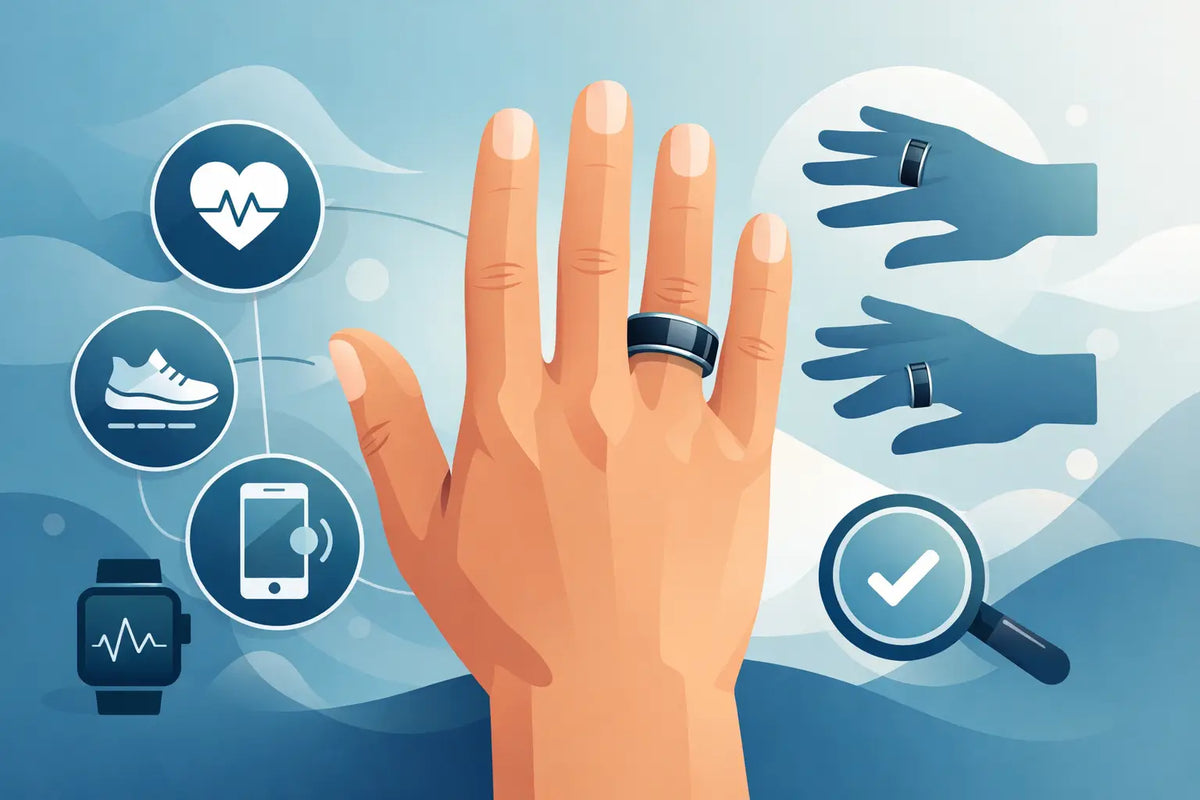
After successful pairing, a quick practical check is worthwhile. Wear the ring so that it fits comfortably, does not rotate, and does not slip during normal hand movements. It may be noticeably snug, but should neither press nor constrict. A good fit supports precise measurements and makes the ring comfortable to wear at night as well.
If your ring size does not fit after all, that is no reason to compromise on usage. With the Fitorb™ Smart Ring Pro, a free exchange for the wrong size is included in the service. This is particularly convenient because finger circumference and the wearing experience can feel different in everyday life than when trying it on for the first time.
Which permissions are really useful
Smartphone permissions sound technical, but can be easily categorized. Bluetooth is necessary so that the ring and app can communicate with each other. Notifications are helpful so that you are reminded of synchronizations, charging times, or personal goals. Access to Apple Health or Health Connect can be useful if you want to see health data from different apps in one place.
Not every permission necessarily has to be granted. Anyone who does not want to share data with other fitness or health services can skip this connection and still use the ring normally. The important thing is that Bluetooth and the system permissions required for device searching remain active.
On Android, it is worth taking a look at the battery settings. Some devices heavily restrict apps in the background to save energy. Then the ring may only synchronize when you manually open the app. If necessary, give the ring app permission to remain active in the background. This improves convenience, but depending on the smartphone, it may use slightly more battery.
If the smart ring does not connect to the phone
Most connection problems have simple causes. Do not immediately start with a reinstallation of the app. First go through the obvious points: Is the ring charged? Is Bluetooth active? Is the ring right next to the smartphone? Does the app have all the necessary permissions?
If that does not help, close the app completely and open it again. Briefly turn Bluetooth off and on again on the smartphone. Then start the search again in the app. For many models, this small restart alone resolves the connection.
If your ring was previously paired with another smartphone, it may still be stored there. Remove the connection on the old device in the ring app before connecting it to the new smartphone. Switching from iPhone to Android or vice versa usually works without problems, provided you use the same app account. Your already synchronized data will then usually remain stored in the account.
A restart of the smartphone can also help, especially after system updates. Then check in the App Store or Google Play Store whether a new version of the ring app is available. Updated apps often fix errors with Bluetooth, data synchronization, or the display of individual values.
Do not reset prematurely
A factory reset of the ring should be the last option. Unsynchronized data can be lost in the process. Therefore, synchronize first if the connection works intermittently. Use a reset only according to the instructions of the respective manufacturer or after consulting customer support.
This is how your health data stays reliably up to date
A smart ring does not need to be actively connected to the smartphone every minute. Many models also record data without a permanently open app and transfer it at the next synchronization. This saves smartphone battery and allows you to wear the ring discreetly in everyday life - in the office, during training, or at night.
For meaningful trends, a regular routine is still recommended. Open the app once a day, for example in the morning after waking up. This way you can see your sleep analysis promptly, recognize changes in resting values or activity, and ensure that the ring has enough energy for the next day.
Do not look at individual values in isolation. A short night, late dinner, stress, or intense training can influence measurements. Health monitoring becomes truly valuable when you recognize patterns over several days and weeks. Perhaps you sleep measurably better after a quiet evening or realize that afternoon exercise does you good. The ring provides the data - you decide what habit arises from it.
New smartphone? This is how the switch works
When switching smartphones, install the official ring app on the new device and sign in with your existing account. Before re-pairing the ring, disconnect it on the old smartphone in the app if possible. If the old device is no longer available, try the connection directly via the app on the new smartphone and follow the instructions there.
Make sure not to accidentally create a second account. Otherwise, earlier data will not appear in your overview, although it is still stored. With the same email address and the same login, you keep your previous trends in one place.
Setting up the connection is not a technical feat, but the first small step toward a clearer view of your everyday life. Take these few minutes, wear the ring regularly, and give your data time to tell a story - your own.

Leave a comment
This site is protected by hCaptcha and the hCaptcha Privacy Policy and Terms of Service apply.